
Subtitles
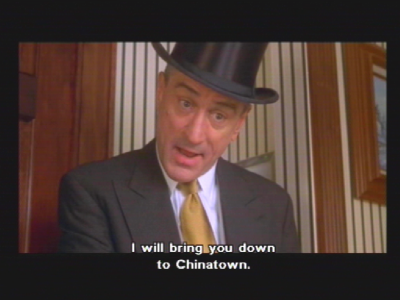
SMS plays soft subtitles — an external text file, laid over the video as it plays. Name the subtitle file to match your movie, drop it in the same folder, and SMS loads it automatically. From Settings → Player settings you can then tune the text's size, colour, alignment and position on screen.
.srt, .sub or .txt files that sit next to the
video — they are not burned into the picture, so you can turn them on or off, restyle them, and swap them without
touching the video file. This text path reads a sidecar file. SMS also has an existing AVI DXSB bitmap-subtitle path; that is distinct from embedded SRT/ASS text tracks or the converter's burn-in option.
Supported subtitle formats
SMS recognises three file extensions for subtitles and reads two underlying text formats:
| Extension | Format SMS reads it as | Timing style |
|---|---|---|
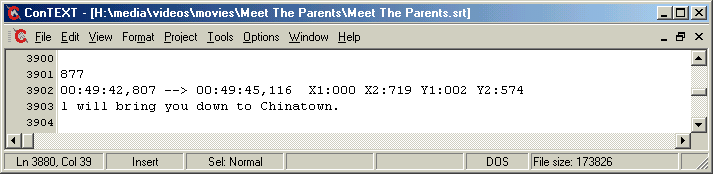
.srt | SubRip (SRT) | Real time, HH:MM:SS,mmm --> HH:MM:SS,mmm |
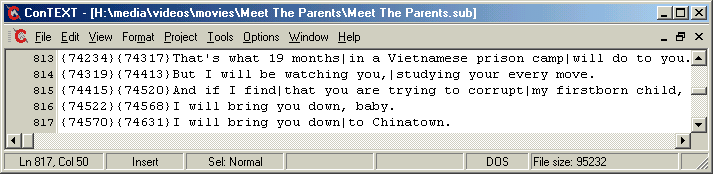
.sub | MicroDVD / time-code "SUB" | Frame-based {start}{end}, or time [start][end] / H:M:S: |
.txt | Same reader as .sub | Frame- or time-based, as above |
In practice, SRT is the format to prefer: it is the most common subtitle format, it is easy to find and
edit, and its cues carry exact times rather than frame counts, so they line up regardless of the video's frame rate.
Use a .sub/.txt file when that is what you already have.
SubRip (.srt)
An SRT file is a numbered list of cues. Each cue is a sequence number, a start-and-end time line using
-->, and one or more lines of text, followed by a blank line:
1
00:00:12,000 --> 00:00:15,500
This is the first subtitle.

2
00:00:16,000 --> 00:00:18,200
And this one has
two lines.
SMS also understands simple <b>, <i> and <u> tags around a
line — bold, italic and underline — and shows those lines in their own colours (see
Subtitle settings below).
MicroDVD-style (.sub / .txt)
The .sub/.txt reader accepts frame-based cues where the numbers in braces are the start
and end frame, with a pipe | separating lines:
{300}{375}This is the first subtitle.
{400}{455}And this one has|two lines.
.sub cues are counted in frames, SMS converts them to real time using the video's
frame rate. If your .sub was authored for a different frame rate than your video, the lines will drift out
of sync as the movie plays. SRT (real-time) files do not have this problem — if timing wanders on a SUB file, look for
an SRT of the same subtitles instead.Adding subtitles to a video
SMS finds a subtitle automatically by name-matching: it takes the video's file name, drops the extension,
and looks in the same folder for a file with the same base name and a .srt, .sub or
.txt extension. If it finds one, it loads it when the video starts.
Match the file names
Rename the subtitle so its base name is identical to the video. For Movie.avi the subtitle should be
Movie.srt (or Movie.sub / Movie.txt). The two names must agree up to the dot;
only the extension differs.
Put them in the same folder
Copy the subtitle onto the same device and into the same directory as the video, so they sit side by side in the file list. SMS looks for the sidecar file in that same folder — it does not search elsewhere.
Leave "Autoload subtitles" on
Automatic loading is controlled by the Autoload subtitles option in Settings → Player settings (press Start in the browser to open the SMS menu), which is on by default. As long as it is on and the names match, the subtitle loads with no extra steps.
Play the video
Open the video as usual. SMS shows a brief Loading subtitles progress step while it reads the file, then the text appears over the picture at the cue times. If the subtitle file has a problem, SMS reports a subtitle error with a line number instead — see Tips & troubleshooting.
Subtitle settings
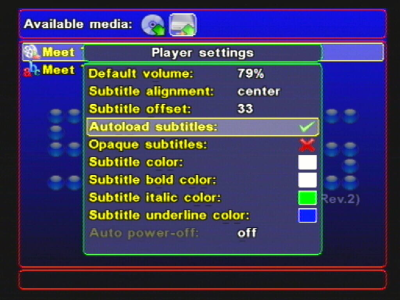
Subtitle appearance is controlled from Settings → Player settings — press Start in the browser to open the SMS menu, then choose Player settings…. Every option below is saved to your configuration, so once you set it to taste it sticks for future videos. While you adjust size and offset, SMS shows a live sample line so you can see the effect immediately.
| Option | What it does |
|---|---|
| Autoload subtitles | On/off. When on, SMS name-matches a sidecar .srt/.sub/.txt and loads it when the video starts. On by default. |
| Opaque subtitles | On/off. Draws a solid dark panel behind the text so it stays readable over bright or busy scenes, rather than letting the text sit directly on the picture. |
| Subtitle color | The colour of normal subtitle text, chosen from the palette. |
| Subtitle bold color | The colour used for lines wrapped in an SRT <b> (bold) tag. |
| Subtitle italic color | The colour used for lines wrapped in an SRT <i> (italic) tag. |
| Subtitle underline color | The colour used for lines wrapped in an SRT <u> (underline) tag. |
| Subtitle alignment | Cycles through four placements for where lines sit horizontally: center, left, right and center-right. |
| Subtitle offset | How far up from the bottom of the screen the subtitle block sits. Raise it to lift the text above an overscan edge or a TV's own on-screen bar. |
| Subtitle font width | Horizontal size of the subtitle glyphs — makes the lettering narrower or wider. |
| Subtitle font height | Vertical size of the subtitle glyphs — makes the lettering shorter or taller. |
| Subtitle MBCS | Selects a multi-byte (MBCS) font for languages whose characters need one, so non-Latin subtitles render correctly. See Character encoding. |
Tips & troubleshooting
Character encoding
SMS reads subtitle text as either UTF-8 or a single code page:
- UTF-8 is detected automatically when the file begins with a UTF-8 byte-order mark. Saving your SRT as "UTF-8 with BOM" from a text editor is the most dependable way to get accented and non-Latin characters right.
- Files without a UTF-8 mark are interpreted through the current code page, so plain ASCII always works, and other single-byte text works when the matching code page is in use.
- For scripts that need a multi-byte font (for example CJK), turn on Subtitle MBCS and select an installed multi-byte font; otherwise those characters cannot be drawn.
If a subtitle shows boxes, wrong letters or gibberish where accented or non-Latin characters should be, it is almost always an encoding mismatch — re-save the file as UTF-8 (with BOM), or match the code page / MBCS font to the language.
Timing
- Prefer SRT for correct sync. SRT cues carry absolute times, so they line up on any video. Frame-based
.subfiles are tied to a frame rate and can drift if that rate does not match the movie. - Match the release. A subtitle written for one cut or frame rate of a film will not necessarily fit another version of the same film. If lines run consistently early or late, you likely have the wrong subtitle for that particular video file.
- Watch for wrapping. Very long single lines are wrapped to fit the screen. If wrapping looks awkward, reducing the font width a little often lets a line fit on one row.
Subtitle errors
If SMS cannot make sense of the file, it shows a subtitle error naming the problem (a format or sequence issue) and the line number where it gave up, then returns you to playback. This usually points at a malformed cue — a mistyped time line, a missing sequence number, or a file that is not actually SRT/SUB text. Open the file in a plain text editor, fix the flagged area, and try again.
Why does my .sub file drift but the .srt is fine?
Brace-style .sub cues ({start}{end}) are measured in frames, not seconds. SMS turns
those frame numbers into real times using the video's frame rate. If the file was authored against a different frame
rate than your copy of the video, every cue lands slightly off, and the error grows over the length of the movie. An
SRT file stores real times directly, so it is immune to this. When a SUB file drifts, the simplest fix is to find and
use an SRT of the same subtitles.
Embedded bitmap subtitles and converter burn-in
The AVI decoder registers DXSB bitmap subtitles. That existing reader does not imply support for arbitrary embedded text tracks in MP4 or other containers. The converter can render one external or embedded text subtitle into the pixels. Burn-in cannot be switched off in SMS; external sidecars remain the flexible text option. See converter subtitle controls.