Getting Started
This guide gets a video or song playing on your PlayStation 2 from start to finish, and teaches you the SMS interface along the way. If you can copy a file onto a USB stick, you can be watching it on your TV in a few minutes — no hard drive, no network adapter, no modchip required. We'll use a USB stick as the easy default; every other device works the same way once you know the layout.
The SMS screen
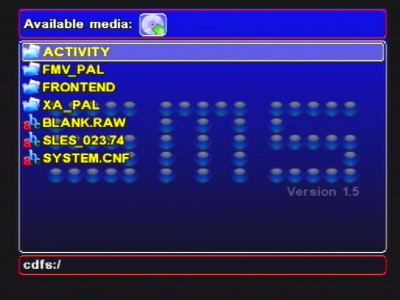
The SMS browser is split into three stacked areas, each drawn inside its own rounded rectangle. Whichever area you are currently working in is highlighted. Learn these three and the whole interface makes sense.
1 · Device menu — top row
A horizontal row of device icons across the top: one icon for each storage source SMS has detected (USB, MX4SIO, the internal HDD, MMCE, a network share, a CD/DVD, and so on). This is where you choose which device to browse.
2 · File list — middle
The file browser for the device you picked: the folders and playable files on it. Directories, files and device roots use different icons so you can tell them apart at a glance. This is where you find and open your media.
3 · Status line — bottom
A thin bar at the bottom. The current path (where you are in the filesystem) is shown on the left, and a clock sits on the right. Watch the path here to keep track of how deep into a folder tree you have gone.
.avi or
.mp3 anywhere on the stick and SMS will list it. Only supported media files (and folders) are
shown in the browser.Navigating with the pad
Everything in the browser is done with the controller. The table below covers the buttons you need. The device menu and the file list each respond a little differently, so both are noted.
| Button | In the device menu | In the file list |
|---|---|---|
| Left / Right | Move between device icons | Jump back up to the device menu |
| Down | Enter the file list of the selected device | Move down one item |
| Up | — | Move up one item |
| Cross ✕ | Select the highlighted device and load its file list | Open the selected folder, or play the selected file |
| Triangle △ | — | Go up one level (folder → parent → back to the device list) |
| L1 / L2 | — | Page-scroll a long list up / down |
| Select + Circle ○ | Power the PS2 off from the browser | |
In short: Left/Right picks a device, Down drops into its files, Up/Down (and L1/L2 for whole pages) moves through the list, Cross opens or plays, and Triangle backs out one level at a time.
Play your first file
The quickest path to a working playback is a USB stick, because almost every PS2 has a front USB port and nothing needs configuring first. Here it is end to end.
1 · Format the stick
Format a USB flash drive as FAT32 or exFAT on your computer. Either works.
2 · Copy media onto it
Copy a supported file to the stick — a .avi (DivX / Xvid / MPEG-4 Part 2),
.mp4 (mp4v, not H.264/H.265), .mpg video, or an .mp3
song is a safe first test. You can put it in any folder, or just at the top
level. See Video Playback and Audio & Playlists for
the full format lists.
3 · Plug in and boot SMS
Insert the stick into the PS2's USB port and launch SMS.
4 · Enable USB
On a clean install SMS defaults optional Autostart flags to off — you turn on what you need. Open the settings menu and either turn on Autostart USB (so USB starts every boot from now on) or use the Start USB now item to bring it up immediately without rebooting. A USB device icon then appears in the device menu. See USB and the Settings Reference for more.
5 · Pick USB in the device menu
Use Left/Right along the top row to highlight the USB device (it appears as a massN:
device — mass0: if it's the only mass-storage device connected), press Cross to select it,
then Down to enter its file list.
6 · Browse to your file
Use Up/Down (and L1/L2 to page through a long list) to move through the files and folders. Press Cross to open a folder; press Triangle to go back up if you take a wrong turn. The status line at the bottom shows where you are.
7 · Press Cross to play
Highlight your file and press Cross. SMS loads it and playback begins. That's it — you're watching a movie (or listening to music) on a stock PS2.
Playback controls
Once a file is playing, a small set of buttons controls it. These are the essentials to remember:
| Button | During playback |
|---|---|
| Select | Pause |
| Start | Resume |
| Triangle △ | Stop and return to the file browser |
So: Select to pause, Start to carry on, and Triangle to stop and go back to browsing. Video playback has more on offer — seeking, subtitles, aspect-ratio modes and an in-player menu — which are covered on the Video Playback and Subtitles pages.
Powering off
When you're done, you can turn the console off straight from SMS. In the file browser, press Select + Circle together and the PS2 powers down. You don't need to exit to the PS2 browser first.
Where to go next
You've got the interface and a first file playing. From here, pick the path that matches your setup.
Why is nothing enabled when I first boot SMS?
By design. On a clean install SMS defaults optional Autostart choices to off — you switch on only the devices you actually use, either permanently with the per-device Autostart toggles in settings, or on demand with the Start <device> now items. This keeps startup fast and avoids probing hardware you don't have. Your choices are saved with the rest of your settings, so once you've turned USB (or any device) on, it comes back the next time you boot. See the Settings Reference for the full list of toggles.
Do my files need to be in a special folder?
No. SMS is a media player, not a game loader — it browses the raw filesystem of the device and plays media files wherever they sit. There is no required folder tree, no cover-art directory and no special naming scheme. Put your videos, music and pictures wherever is convenient and browse to them with the pad.
Boot-source exception: optional Autostart flags default off, but SMS may start/remount the device holding its ELF/config during startup. A source already visible after first boot does not mean another Autostart choice was saved. See configuration discovery.