Display, Themes & BGM
The dashboard is PS2-inspired but deliberately configurable rather than forcing one presentation.
Selection presentation
Selection style can be changed instead of forcing a single hue/glow. Selected and unselected device cards use the same geometry; focus adds emphasis without resizing/reflowing the card.
Icon backing
Control/menu icon backing can be enabled or disabled explicitly. This option came from tester feedback rather than being baked into a single theme.
Clock and date
The dashboard clock can follow system 12/24-hour behavior or theme overrides, optionally show seconds and use configured date order/placement. File metadata retains seconds independently of the clock setting.
Motion
Top tabs, selection movement, OSD orbs and marquee effects use bounded smooth animation. The former fast sinusoidal header overshoot was removed because it could appear as top-of-dashboard video flicker on interlaced displays.
Custom wallpaper: 4:3 aspect ratio
Make your wallpaper on a 4:3 canvas. Use 640 × 480 PNG to preserve detail, or 320 × 240 for a smaller, lower-memory image like the starter example. Launchstation preserves aspect ratio, center-crops wider or taller inputs, and fills the screen. The decoder keeps wallpapers inside a 640 × 512 box, so a 4:3 source can retain 640 × 480 pixels. Smaller sources are not enlarged during decoding. A 640 × 480 texture uses about 1.17 MiB of decoded memory, four times the 320 × 240 option. This improves image detail at the existing output modes; it does not itself change the video output resolution. The 640 × 448 logical UI coordinate system is not the required artwork ratio.
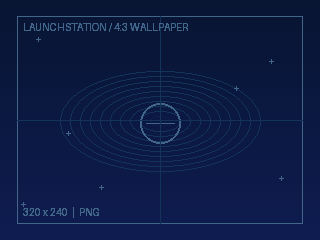
Download example background.png · Matching theme.cfg · Complete example folder
Format and composition tips
- Format: PNG, maximum file size 1.5 MB and source dimensions 2048 × 2048. A non-interlaced RGB or indexed 320 × 240 PNG is an easy choice.
- Safe area: keep important subject matter away from the extreme edges. CRT overscan and screen centering vary, and dashboard panels or hints may cover parts of the image.
- Contrast: use a dark or subdued background behind text and adjust theme brightness, panel opacity and text colours if needed.
- Other ratios: 320 × 256 is 5:4, and 320 × 224 is 10:7; both are supported inputs but are not the ideal 4:3 canvas. 16:9 sources are cropped horizontally.
How to enable one
- For a single image, open Settings > Appearance > Customize theme > Background > Wallpaper image..., then choose a PNG and save your Settings changes.
- To load the example theme, place
theme.cfgandbackground.pngtogether inside a folder underTHEMES/next to the Launchstation ELF (or in the dashboard configuration folder). Choose Settings > Appearance > Theme files & resets > Load theme from folder..., select that folder and save.
For a theme.cfg file, background = image and image = background.png select the static wallpaper. The separate wallpaper = focused option uses the artwork of the selected application and is not needed for a custom static image. Missing or invalid wallpaper files fall back to the theme gradient.
Background music
BGM.ADP ships in the current rolling ZIP/PSU packages but remains optional for standalone ELF installs. Put it next to the executable when installed manually. A missing music file does not prevent the dashboard from booting.
Website cursor orbs
The GitHub Pages site has a separate top-header cursor-orb toggle. Orbs are on by default on desktop and off by default on mobile/coarse-pointer devices. Your choice is saved locally, and switching off stops the animation loop. This does not change the PS2 dashboard theme.
Reset display/theme
The reset action restores video mode/centering and project theme defaults, useful when experimentation makes text, selection or offsets difficult to recover manually.